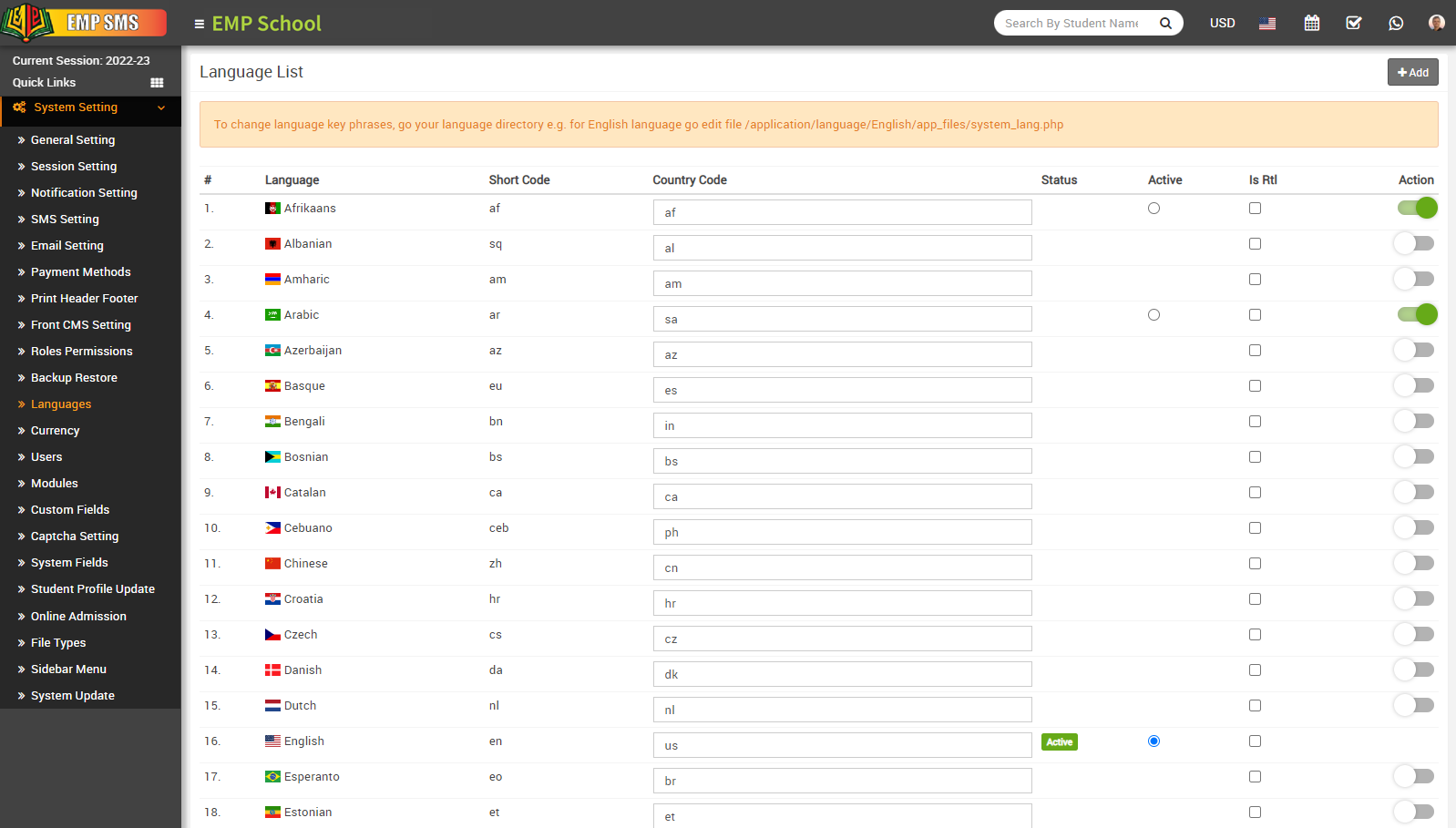
Here we are providing 79 languages, including 3 indigenous languages, in our EMP School.
1. Afrikaans2. Albanian
3. Amharic
4. Arabic
5. Affan Oromo
6. Azerbaijan
7. Basque
8. Bengali
9. Bosnian
10. Catalan
11. Cebuano
12. Chinese
13. Czech
14. Danish
15. Dutch
16. English
17. Esperanto
18. Estonian
19. Finnish
20. French
21. Galician
22. Georgian
23. German
24. Greek
25. Gujarati
26. Haitian (Creole)
27. Hebrew
28. Hindi
29. Hungarian
30. Icelandic
31. Indonesian
32. Irish
33. Italian
34. Japanese
35. Javanese
36. Kannada
37. Korean
38. Kurdish
39. Lao
40. Latin
41. Latvian
42. Lithuanian
43. Macedonian
44. Malagasy
45. Malay
46. Malayalam
47. Maltese
48. Maori
49. Marathi
50. Mongolian
51. Nepali
52. Norwegian
53. Persian
54. Polish
55. Portuguese
56. Punjabi
57. Romanian
58. Russian
59. Scottish
60. Sinhala
61. Slovakian
62. Slovenian
63. Spanish
64. Sundanese
65. Swahili
66. Swedish
67. Tagalog
68. Tamil
69. Telugu
70. Thai
71. Tigrigna
72. Turkish
73. Urdu
74. Uzbek
75. Vietnamese
76. Welsh
77. Xhosa
78. Yiddish
79. Croatian
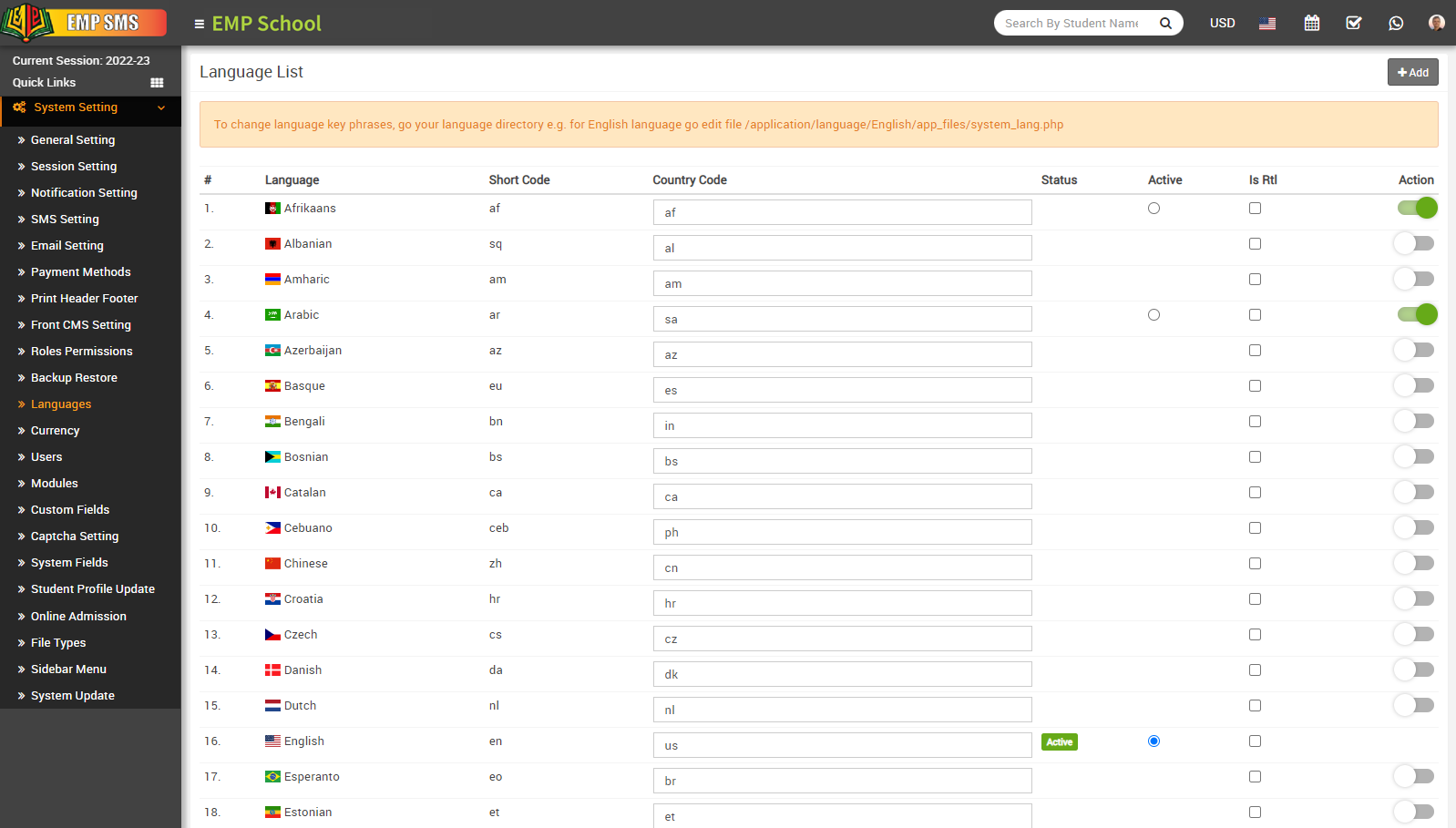
To add language, go to System Settings > Languages then click on Add button present at top right corner on the language list page.
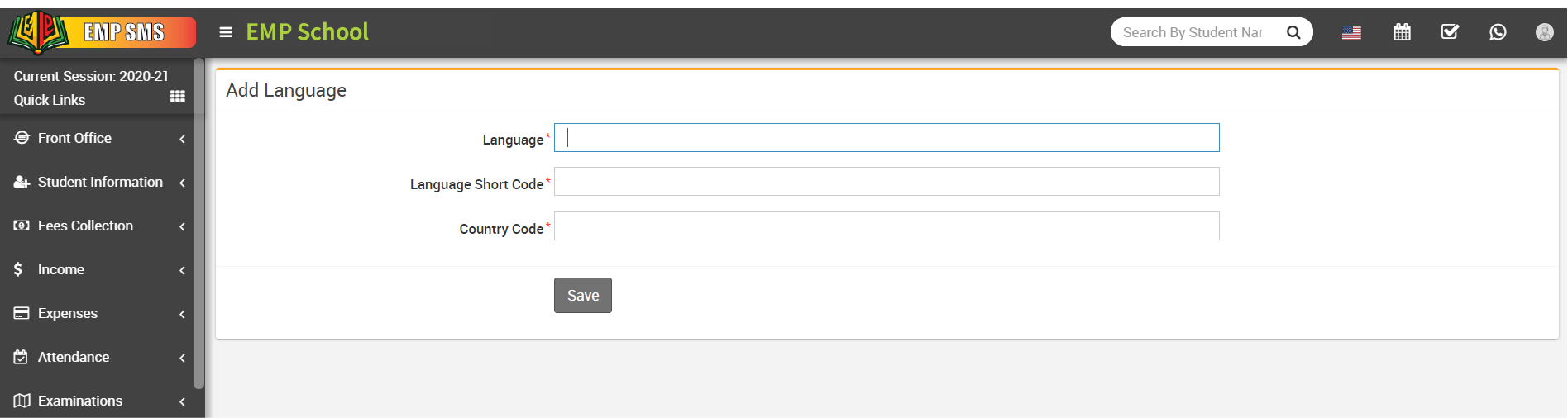
After clicking of this button Add Language modal will be open. Here enter Language, Language Short Code, Country Code and then click on Save button.
To activate any language (In which you want to run EMP School), click on Action button present in the last column.
To edit country codes, go to the System Setting > languages. The language list will be open. Now in the country code column, you can edit the country code, which is already predefined internationally, you can also get these codes from Google. Now fill in the country code next to the relevant country and click outside the column. Then refresh the page, and your country code will be successfully changed. The country flag will also be changed automatically based on the country code change.
Note - You can not Edit default languages.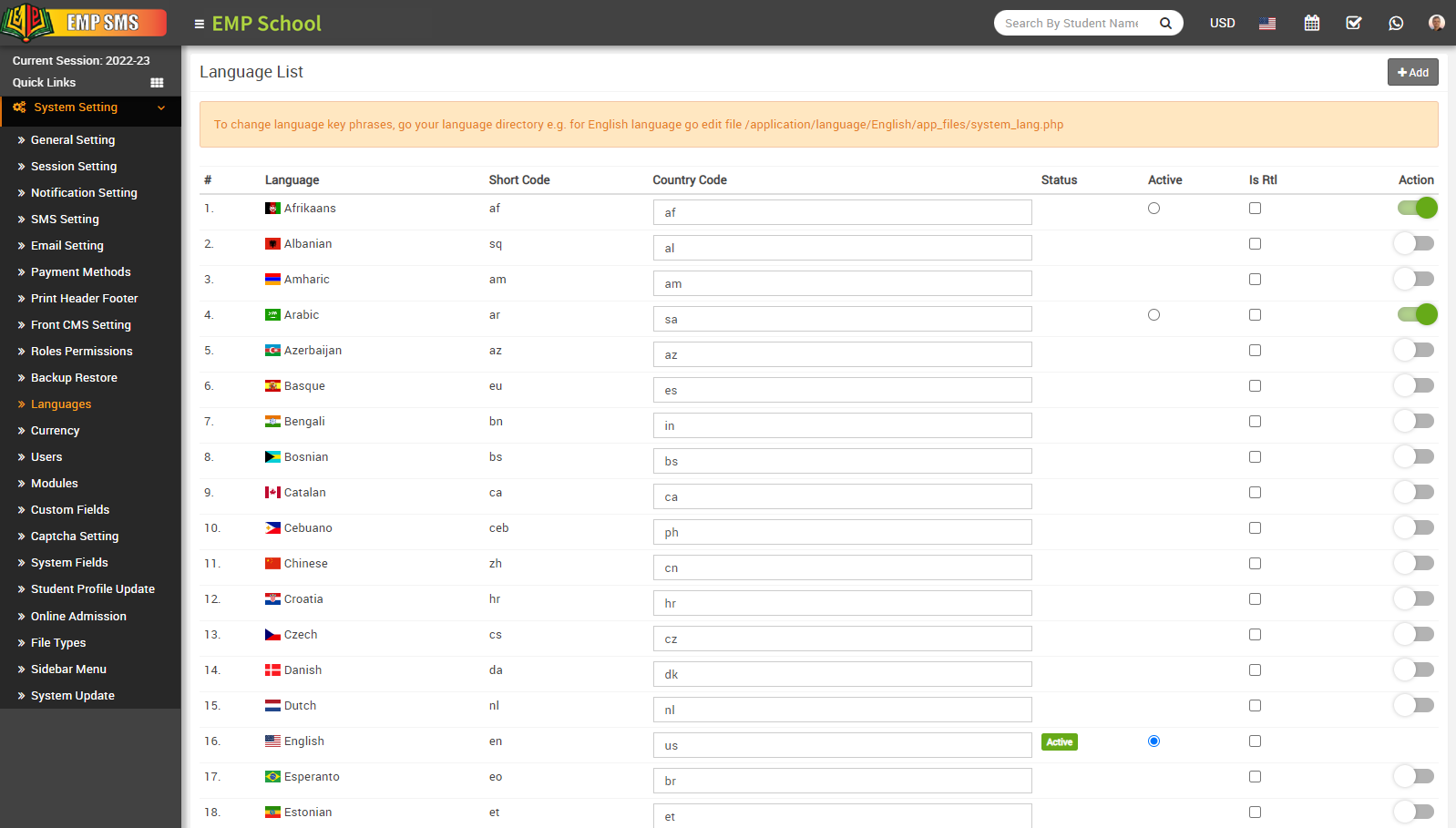
To delete language click on the Remove icon.
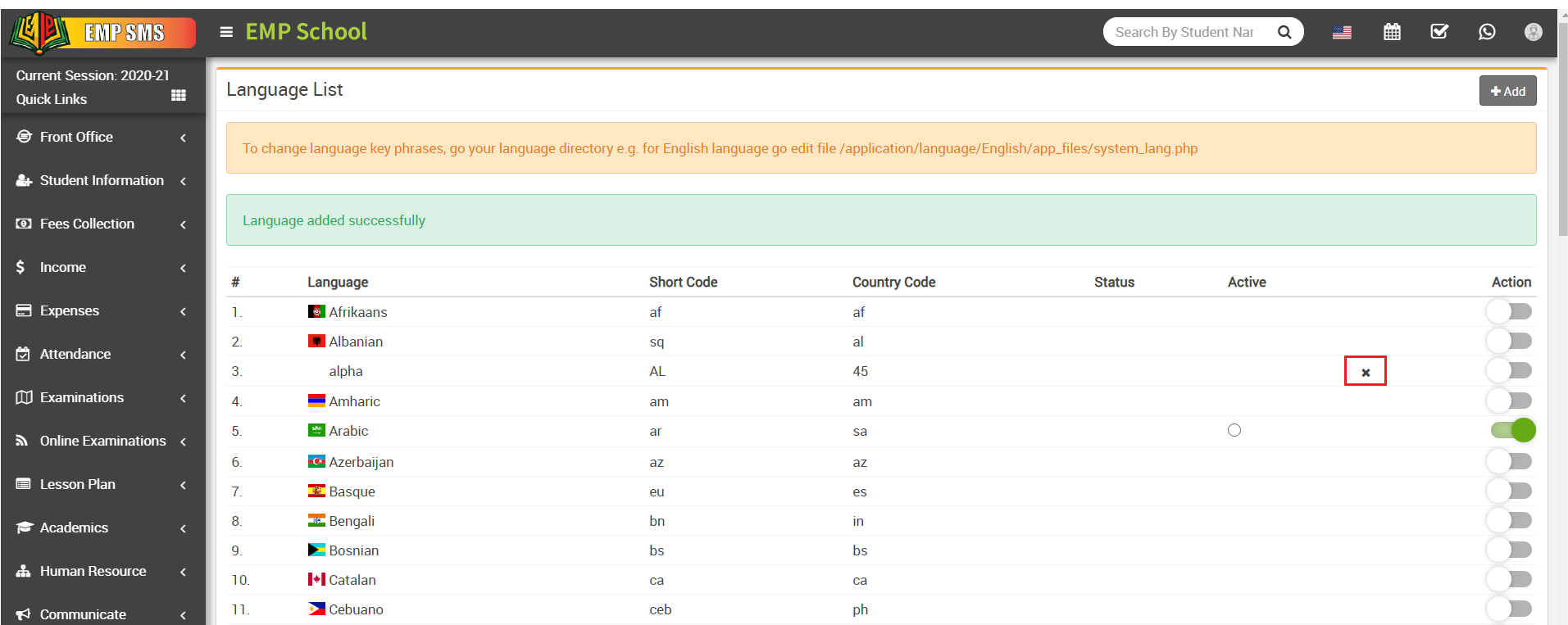
Note - You can not delete default languages.
In EMP School, RTL mode refers to a feature that enables the platform's interface to display content correctly for users who read and write in RTL languages, such as Arabic and Hebrew. When RTL mode is enabled, the interface and layout of the platform are adjusted accordingly, so that text, images, and other elements are aligned and displayed from right to left, rather than left to right.
Enabling RTL mode in EMP School can be particularly useful for schools and educational institutions that have students, teachers, or staff who primarily use RTL languages. It helps to ensure that the platform's content and features are accessible and easy to use for these users, improving their overall experience with the platform.
To Enable RTL mode, go to System Settings > Languages, then on the right side you can see the "Is RTL" column showing. Simply click on the checkbox in which language you want to see your EMP school in RTL mode.